# Anleitung Chatsoftware (Matrix)

Unser Matrix Server dient dem Austausch zwischen Helfenden &amp; Mitarbeitenden des rdp-BW sowie des Ringelager 2028. Über Matrix ist es möglich Spaces &amp; Gruppen für Arbeitskreise, Projektgruppen/Teams usw. zu erstellen und wie bei anderen Messenger zu chatten.

Für Matrix gibt es verschiedene Clients, die man je nach Präferenz verwenden kann (anders als bei Messengern wie Whatsapp, Signal, Threema usw. wo es nur die offizielle Apps gibt).

<details id="bkmrk-anmelden-an-matrix-server"><summary>Anmelden an Matrix Server</summary>

Für die Anmeldung an unserem Matrix Server wird ein entsprechender Matrix Client benötigt. In diesem Abschnitt wird erklärt, wie man sich an einem solchen Client anmelden kann.

Anders als bei bekannten Messengern wie Whatsapp, Telegram, Signal, Threma usw. gibt es bei Matrix mehrere Clients &amp; Server die verwendet werden können (je nach Präferenz).

<p class="callout warning">Für die Anmeldung an unserem Matrix Chatserver ist ein rdp-BW Account erforderlich. Eine Anleitung für die Benutzerregistrierung findest du [hier](https://wiki.rdp-bw.de/link/5).</p>

### Webbrowser basiert: 

<p class="callout info">Funktioniert i.d.R. am besten auf Geräten mit großen Bildschirm (z.B. Tablets, Laptops, PCs usw.)</p>

<details><summary>rdp-BW Webclient</summary>

1. Öffne [chat.rdp-bw.de](https://chat.rdp-bw.de)
2. Melde dich anschließend mit deinem rdp-BW Account an (sofern du dazu aufgefordert wirst)
3. Gehe anschließend auf „**Continue**“
4. Folge den Anweisungen in folgenden Screenshots (sofern die Meldungen erscheinen): ![IMG_3619.jpeg](https://wiki.rdp-bw.de/uploads/images/gallery/2025-06/scaled-1680-/img-3619.jpeg)![IMG_3620.jpeg](https://wiki.rdp-bw.de/uploads/images/gallery/2025-06/scaled-1680-/img-3620.jpeg)

</details><details><summary>Drittanbieter Webclient</summary>

1. Auswahl des gewünschten Webclients (siehe Abschnitt „[**Matrix-Clients (Auswahl)**](#bkmrk-matrix-clients)“)
2. Gehe zur Website des Drittanbieter Webclients
3. Trage als (Home)server **`matrix.rdp-bw.de`** bzw. `<strong>https://matrix.rdp-bw.de</strong>` ein.
4. Je nach Client wird ein Button mit „**KeyCloak**“ angezeigt oder man wird zu Keycloak weitergeleitet (ggf. mit vorherigem Hinweis)   
    ![IMG_3630.jpeg](https://wiki.rdp-bw.de/uploads/images/gallery/2025-06/img-3630.jpeg)![IMG_3629.jpeg](https://wiki.rdp-bw.de/uploads/images/gallery/2025-06/img-3629.jpeg)
5. Gehe nach erfolgreichen Login (wird ggf. auch ohne Anmeldung angezeigt) auf „**Continue**“

</details>### Laptop &amp; PC: 

<details><summary>Element</summary>

1. Herunterladen des „**Element**“ Programms (siehe Abschnitt „[**Matrix-Clients (Auswahl)**](#bkmrk-matrix-clients)“)
2. Öffnen des Programms
3. Folge den Anweisungen der folgenden Screenshots:<span style="-webkit-tap-highlight-color: rgba(0, 0, 0, 0);"> </span>![image.png](https://wiki.rdp-bw.de/uploads/images/gallery/2026-03/scaled-1680-/image.png)
4. Eintragen des Homeservers **`matrix.rdp-bw.de`** bzw. **`https://matrix.rdp-bw.de`** (grün umrandetes Feld) und anschließend auf "**Fortfahren**":   
    [![image.png](https://wiki.rdp-bw.de/uploads/images/gallery/2026-03/scaled-1680-/NaBimage.png)](https://wiki.rdp-bw.de/uploads/images/gallery/2026-03/NaBimage.png)
5. Folge den Anweisungen der folgenden Screenshots:<span style="-webkit-tap-highlight-color: rgba(0, 0, 0, 0);"> </span>![image.png](https://wiki.rdp-bw.de/uploads/images/gallery/2026-03/scaled-1680-/JJRimage.png)
6. Ggf. Einloggen bei Keycloak (sofern du dazu aufgefordert wirst)
7. Folge den Anweisungen der folgenden Screenshots:<span style="-webkit-tap-highlight-color: rgba(0, 0, 0, 0);"> </span>![image.png](https://wiki.rdp-bw.de/uploads/images/gallery/2026-03/scaled-1680-/s7Ximage.png)
    
    ![image.png](https://wiki.rdp-bw.de/uploads/images/gallery/2026-03/scaled-1680-/J0mimage.png)
    
    ![image.png](https://wiki.rdp-bw.de/uploads/images/gallery/2026-03/scaled-1680-/o88image.png)
    
    [![image.png](https://wiki.rdp-bw.de/uploads/images/gallery/2026-03/scaled-1680-/xN2image.png)](https://wiki.rdp-bw.de/uploads/images/gallery/2026-03/xN2image.png)

</details>### Mobilgeräte: 

<details><summary>Element Classic (Nicht „Element X“ oder „Element Pro“!)</summary>

#### iPhone/iPad: 

1. Herunterladen der App „**Element Classic**“ (siehe Abschnitt „[**Matrix-Clients (Auswahl)**](#bkmrk-matrix-clients)“)
2. Öffnen der App
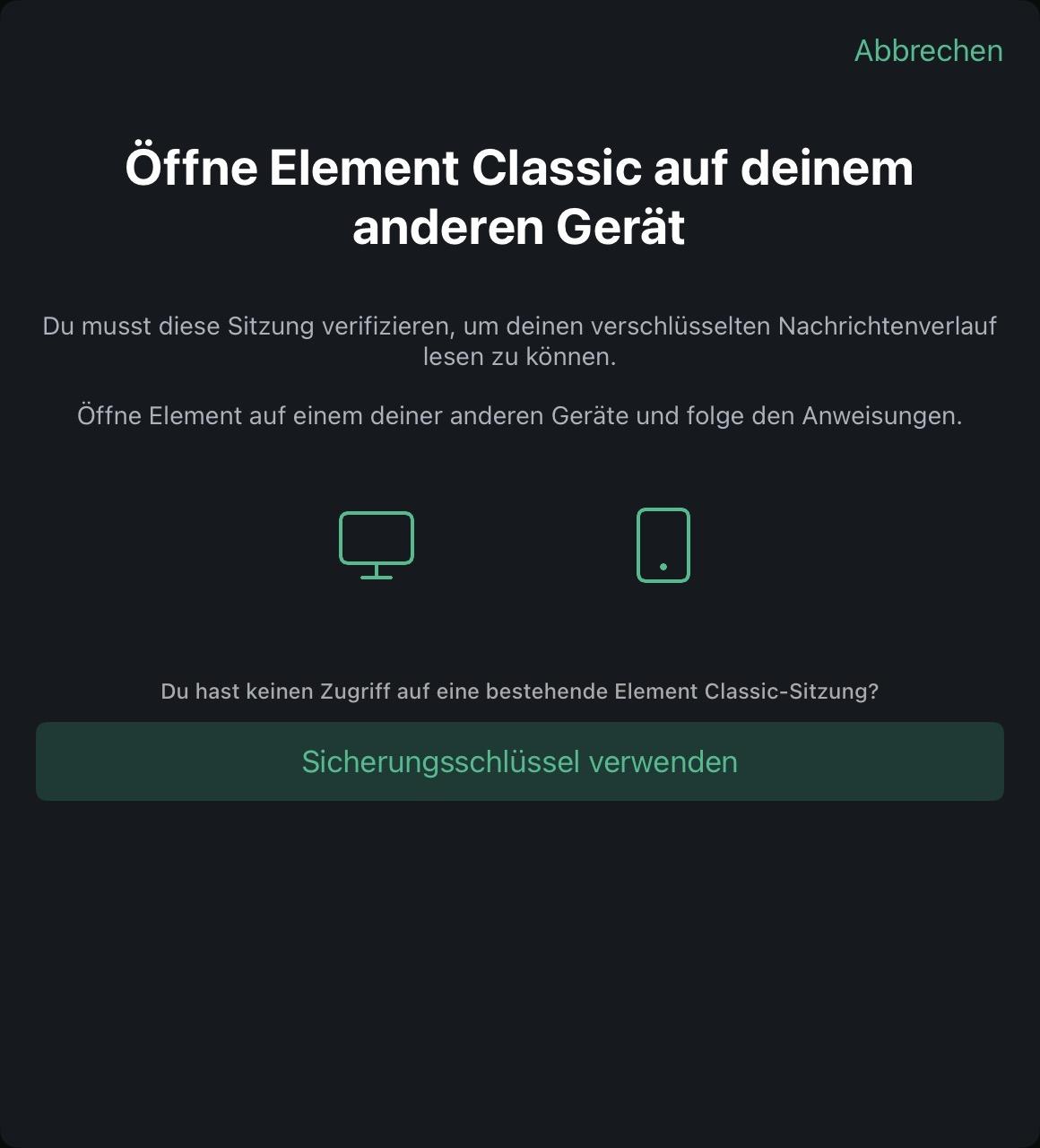
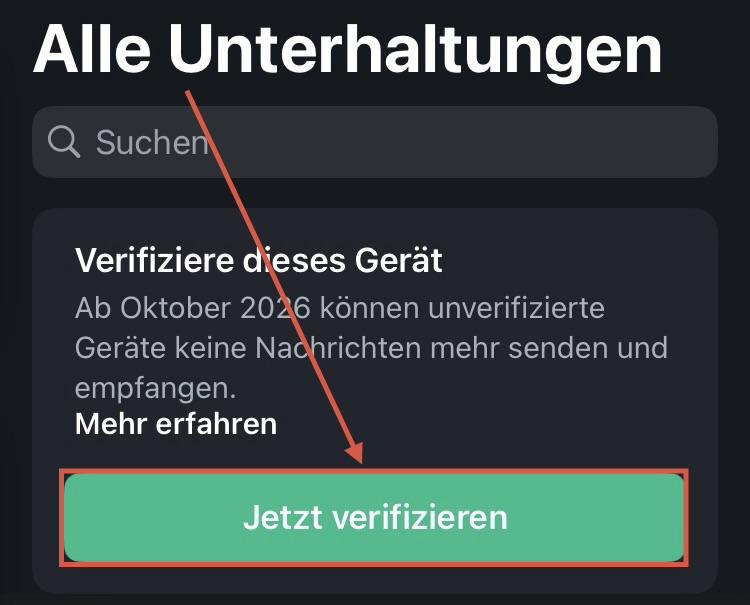
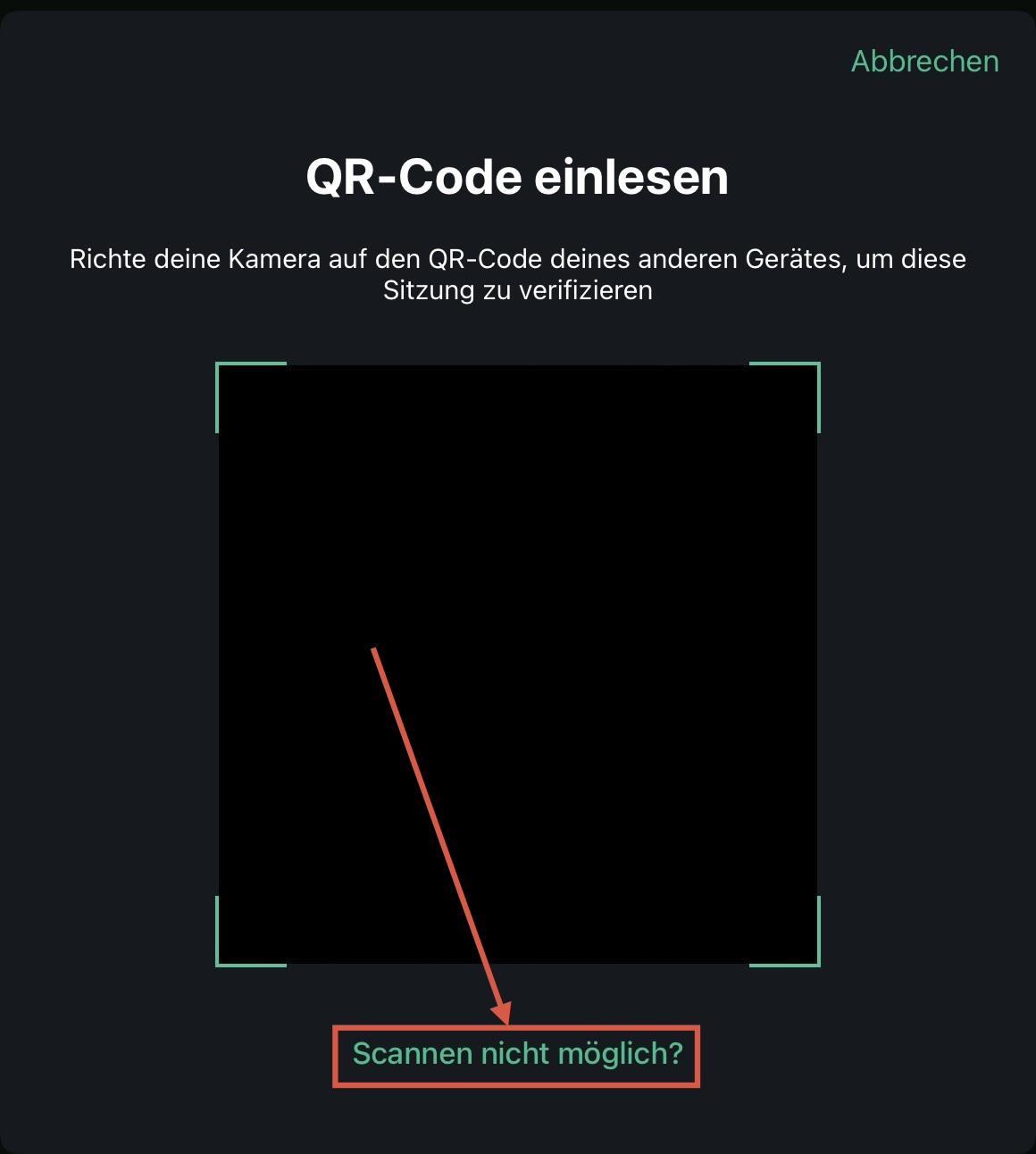
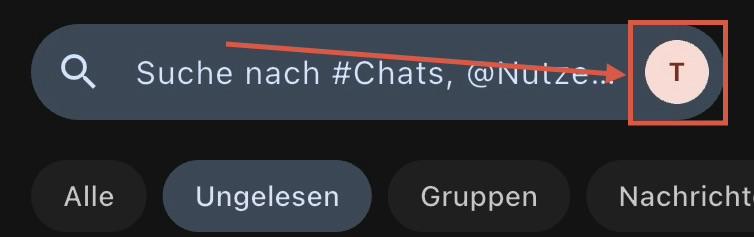
3. Folge den Anweisungen der folgenden Screenshots: [![IMG_4031.jpeg](https://wiki.rdp-bw.de/uploads/images/gallery/2026-03/scaled-1680-/img-4031.jpeg)](https://wiki.rdp-bw.de/uploads/images/gallery/2026-03/img-4031.jpeg)

#### Android: 

1. Herunterladen der App „**Element Classic**“ (siehe Abschnitt „[**Matrix-Clients (Auswahl)**](#bkmrk-matrix-clients)“)
2. Öffnen der App
3. Gehe auf den Button „<span style="color: rgb(45, 194, 107);">**ANMELDEN**</span>“ (<span style="text-decoration: underline; color: rgb(224, 62, 45);">**nicht**</span> „**<span style="color: rgb(224, 62, 45);">KONTO ERSTELLEN</span>**“) [![IMG_4057.jpeg](https://wiki.rdp-bw.de/uploads/images/gallery/2026-03/scaled-1680-/img-4057.jpeg)](https://wiki.rdp-bw.de/uploads/images/gallery/2026-03/img-4057.jpeg)
4. Eintragen des Homeservers **`https://chat.rdp-bw.de`** (**<span style="color: rgb(224, 62, 45);">chat.rdp-bw.de</span>** ist <span style="text-decoration: underline;"><span style="color: rgb(224, 62, 45); text-decoration: underline;">**nicht**</span></span> ausreichend)
5. Folge den Anweisungen der folgenden Screenshots:![IMG_4029.jpeg](https://wiki.rdp-bw.de/uploads/images/gallery/2026-03/scaled-1680-/img-4029.jpeg)![IMG_4032.jpeg](https://wiki.rdp-bw.de/uploads/images/gallery/2026-03/scaled-1680-/img-4032.jpeg)

</details><details><summary>FluffyChat</summary>

1. Herunterladen der App „**FluffyChat**“ (siehe Abschnitt „[**Matrix-Clients (Auswahl)**](#bkmrk-matrix-clients)“)
2. Öffnen der App
3. Eintragen des Homeservers **`matrix.rdp-bw.de`** bzw. **`https://matrix.rdp-bw.de`**
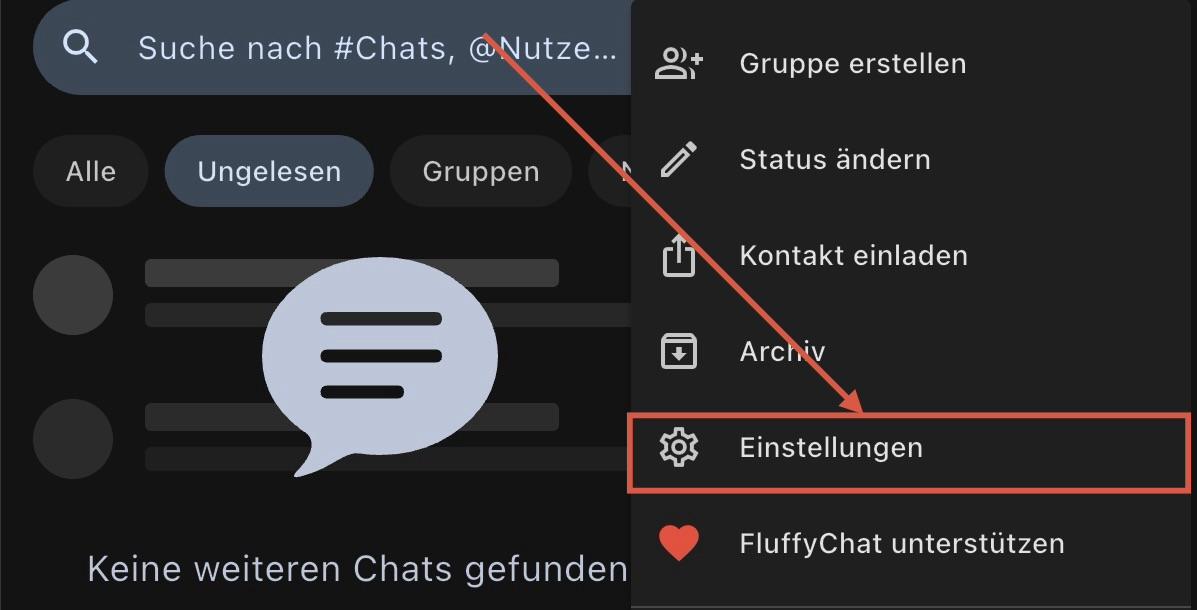
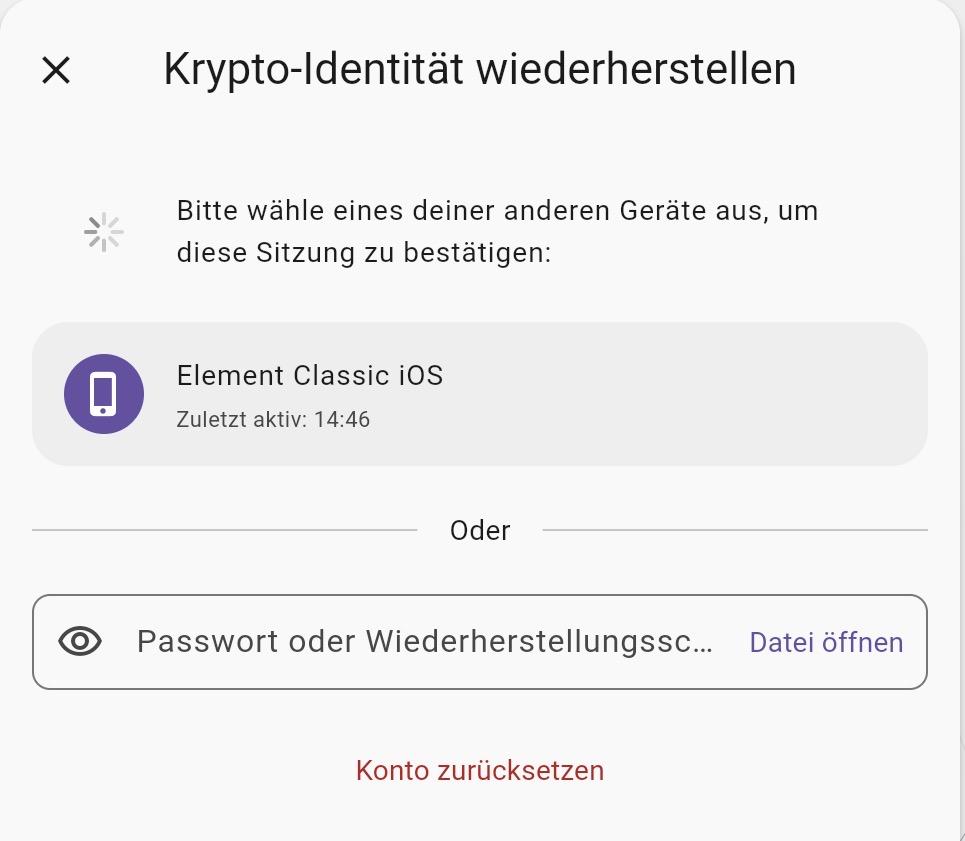
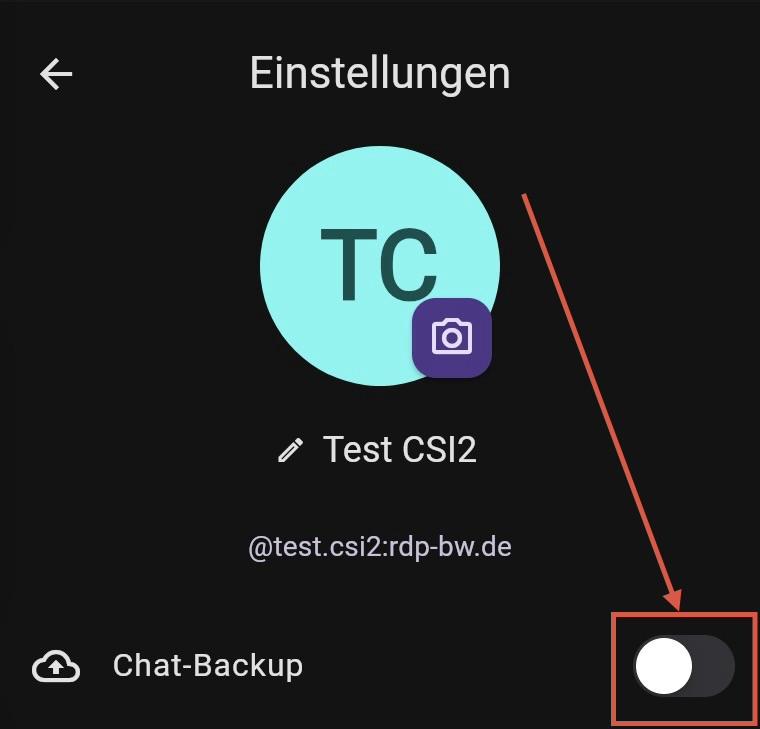
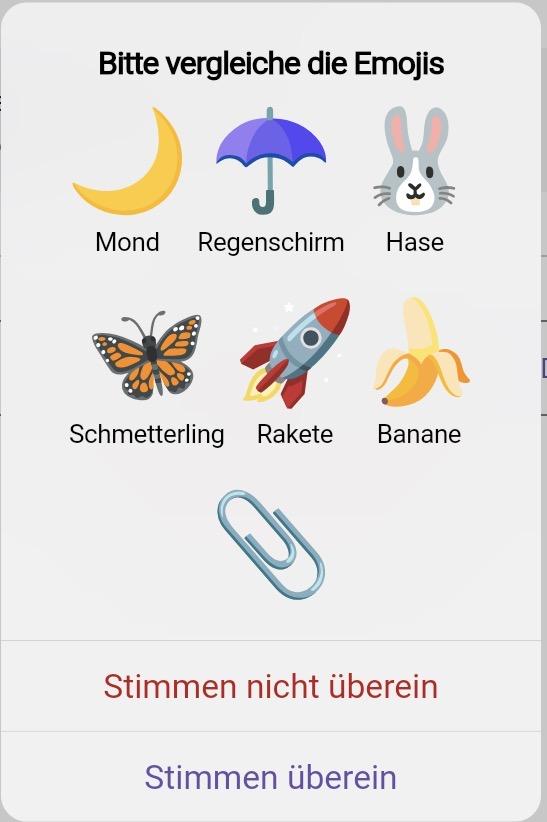
4. Folge den Anweisungen der folgenden Screenshots:<span style="-webkit-tap-highlight-color: rgba(0, 0, 0, 0);">   
    ![IMG_4034.jpeg](https://wiki.rdp-bw.de/uploads/images/gallery/2026-03/scaled-1680-/img-4034.jpeg)![IMG_4035.jpeg](https://wiki.rdp-bw.de/uploads/images/gallery/2026-03/scaled-1680-/img-4035.jpeg)![IMG_4036.jpeg](https://wiki.rdp-bw.de/uploads/images/gallery/2026-03/scaled-1680-/img-4036.jpeg)![IMG_4037.jpeg](https://wiki.rdp-bw.de/uploads/images/gallery/2026-03/scaled-1680-/img-4037.jpeg)![IMG_4038.jpeg](https://wiki.rdp-bw.de/uploads/images/gallery/2026-03/scaled-1680-/img-4038.jpeg)![IMG_4039.jpeg](https://wiki.rdp-bw.de/uploads/images/gallery/2026-03/scaled-1680-/img-4039.jpeg)  
    </span>

</details><details><summary>SchildiChat (Nur Android)</summary>

1. Herunterladen der App „**SchildiChat Legacy**“ (siehe Abschnitt „[**Matrix-Clients (Auswahl)**](#bkmrk-matrix-clients)“)
2. Öffnen der App
3. Folge den Anweisungen der folgenden Screenshots:![IMG_4081.jpeg](https://wiki.rdp-bw.de/uploads/images/gallery/2026-04/scaled-1680-/img-4081.jpeg)![IMG_4080.jpeg](https://wiki.rdp-bw.de/uploads/images/gallery/2026-04/scaled-1680-/img-4080.jpeg)![IMG_4079.jpeg](https://wiki.rdp-bw.de/uploads/images/gallery/2026-04/scaled-1680-/img-4079.jpeg)![IMG_4078.jpeg](https://wiki.rdp-bw.de/uploads/images/gallery/2026-04/scaled-1680-/img-4078.jpeg)
4. Melde dich mit deinem rdp-BW Account am Keycloak an (sofern du dazu aufgefordert wirst)
5. Folge den weiteren Anweisungen der folgenden Screenshots: ![IMG_4076.jpeg](https://wiki.rdp-bw.de/uploads/images/gallery/2026-04/scaled-1680-/img-4076.jpeg)![IMG_4075.jpeg](https://wiki.rdp-bw.de/uploads/images/gallery/2026-04/scaled-1680-/img-4075.jpeg)![IMG_4074.jpeg](https://wiki.rdp-bw.de/uploads/images/gallery/2026-04/scaled-1680-/img-4074.jpeg)

</details></details><details id="bkmrk-matrix-clients"><summary>Matrix-Clients (Auswahl)</summary>

Hier findest du eine kleine Auswahl an Matrix-Clients. Die offizielle Matrix-Client Übersicht findest du [hier](https://matrix.org/ecosystem/clients).

<p class="callout warning">**Wichtig:** Der Client muss Single-Sign-On (SSO) unterstützen, da sonst eine Anmeldung an unserem Matrix-Server nicht möglich ist. Die hier aufgelisteten Clients unterstützen alle SSO.</p>

<p class="callout info">**Anmerkung:** Der „Element X“ oder „Element Pro“ Client (siehe [Herstellerwebsite von Element](https://element.io/app)) unterstützt leider kein SSO, weshalb dieser nicht mit unserem Matrix-Server verwendet werden kann.</p>

<table border="1" style="border-collapse: collapse; width: 100%; border-width: 1px;"><colgroup><col style="width: 33.333333%;"></col><col style="width: 33.333333%;"></col><col style="width: 33.333333%;"></col></colgroup><tbody><tr><td>**Plattform**</td><td>**Client**</td><td>**Download/Website**</td></tr><tr><td>Webbrowser</td><td>Webclient rdp-BW (Element)</td><td><div class="tox-sidebar" role="presentation"><div class="tox-sidebar__slider tox-sidebar--sliding-closed" data-alloy-tabstop="true" tabindex="-1">- [Webclient](https://chat.rdp-bw.de)

</div></div></td></tr><tr><td>Webbrowser</td><td>Element</td><td><div class="tox-sidebar" role="presentation"><div class="tox-sidebar__slider tox-sidebar--sliding-closed" data-alloy-tabstop="true" tabindex="-1">- [Herstellerwebsite](https://app.element.io)
- [Webclient](https://app.element.io)

</div></div></td></tr><tr><td>Laptop &amp; PC

(Windows/Mac/Linux)

</td><td>Element</td><td><div class="tox-sidebar" role="presentation"><div class="tox-sidebar__slider tox-sidebar--sliding-closed" data-alloy-tabstop="true" tabindex="-1">- [Herstellerwebsite](https://element.io/app)
- [Download Windows](https://packages.riot.im/desktop/install/win32/x64/Element%20Setup.exe)
- [Download Mac](https://packages.riot.im/desktop/install/macos/Element.dmg)
- [Download Linux](https://element.io/download#linux)

</div></div></td></tr><tr><td>Mobilgeräte

(Android/iOS)

</td><td>Element Classic</td><td><div class="tox-sidebar" role="presentation"><div class="tox-sidebar__slider tox-sidebar--sliding-closed" data-alloy-tabstop="true" tabindex="-1">- [Herstellerwebsite](https://element.io/app)
- [iOS AppStore](https://apps.apple.com/us/app/element-messenger/id1083446067)
- [Google Play Store](https://play.google.com/store/apps/details?id=im.vector.app)

</div></div></td></tr><tr><td>Webbrowser</td><td>FluffyChat</td><td><div class="tox-sidebar" role="presentation"><div class="tox-sidebar__slider tox-sidebar--sliding-closed" data-alloy-tabstop="true" tabindex="-1">- [Herstellerwebsite](https://fluffy.chat)
- [Webclient](https://fluffychat.im/web)

</div></div></td></tr><tr><td>Mobilgeräte

(Android/iOS)

</td><td>FluffyChat</td><td><div class="tox-sidebar" role="presentation"><div class="tox-sidebar__slider tox-sidebar--sliding-closed" data-alloy-tabstop="true" tabindex="-1">- [Herstellerwebsite](https://fluffy.chat)
- [iOS AppStore](https://apps.apple.com/de/app/fluffychat/id1551469600)
- [Google Play Store](https://play.google.com/store/apps/details?id=chat.fluffy.fluffychat)

</div></div></td></tr><tr><td>Webbrowser</td><td>SchildiChat</td><td><div class="tox-sidebar" role="presentation"><div class="tox-sidebar__slider tox-sidebar--sliding-closed" data-alloy-tabstop="true" tabindex="-1">- [Herstellerwebsite](https://schildi.chat)
- [Webclient](https://app.schildi.chat)

</div></div></td></tr><tr><td>Laptop &amp; PC

(Windows &amp; Mac)

</td><td>SchildiChat</td><td>- [Herstellerwebsite](https://schildi.chat/desktop)
- [Downloads (Windows &amp; Mac)](https://github.com/SchildiChat/schildichat-desktop/releases)

</td></tr><tr><td>Mobilgeräte

(Android)

</td><td>SchildiChat</td><td>- [Herstellerwebsite](https://schildi.chat/android)
- [Google Play Store](https://play.google.com/store/apps/details?id=de.spiritcroc.riotx)

</td></tr></tbody></table>

</details><details id="bkmrk-verbindungsdaten"><summary>Verbindungsdaten</summary>

<table border="1" style="width: 100%; border-width: 1px;"><colgroup><col style="width: 33.333333%;"></col><col style="width: 33.333333%;"></col><col style="width: 33.333333%;"></col></colgroup><tbody><tr><td>**Plattform**

</td><td>**Client**</td><td>**Homeserver**</td></tr><tr><td>Webbrowser</td><td>rdp-BW Webclient (Element)</td><td>- [chat.rdp-bw.de](https://chat.rdp-bw.de)

</td></tr><tr><td>Mobilgeräte

(Android)

</td><td>Element</td><td>- `https://chat.rdp-bw.de`

</td></tr><tr><td>Laptop &amp; PC

(Windows/Mac/Linux)

</td><td>Element</td><td>- `matrix.rdp-bw.de` bzw.
- `https://matrix.rdp-bw.de`

</td></tr><tr><td>Laptop &amp; PC + Mobilgeräte

(iPhone/iPad, Mac, Windows, Linux)

</td><td>FluffyChat</td><td>- `matrix.rdp-bw.de` bzw.
- `https://matrix.rdp-bw.de`

</td></tr><tr><td>Mobilgeräte

(Android)

</td><td>SchildiChat</td><td>- `chat.rdp-bw.de` bzw.
- `https://chat.rdp-bw.de`

</td></tr><tr><td>Laptop &amp; PC

(Windows/Mac/Linux)

</td><td>SchildiChat</td><td>- `chat.rdp-bw.de` bzw.
- `https://chat.rdp-bw.de`

</td></tr><tr><td>Webbrowser</td><td>Drittanbieter-Webclients</td><td>- `matrix.rdp-bw.de` bzw.
- `https://matrix.rdp-bw.de`

</td></tr></tbody></table>

</details><details id="bkmrk-empfohlene-matrix-cl"><summary>Empfohlene Matrix-Client Einstellungen</summary>

<details><summary>FluffyChat</summary>

##### Space Navigationsleiste (links) + Trennung von Gruppen &amp; Direktnachrichten: 

1. Wechsle zu **Profilbild** -&gt; **Einstellungen** -&gt; **Ändere Deinen Style**
2. Aktiviere folgende Einstellungen: [![IMG_3859.jpeg](https://wiki.rdp-bw.de/uploads/images/gallery/2025-12/scaled-1680-/img-3859.jpeg)](https://wiki.rdp-bw.de/uploads/images/gallery/2025-12/img-3859.jpeg)

##### Verwendung von Jitsi für Videokonferenzen: 

1. Wechsle zu **Profilbild** -&gt; **Einstellungen** -&gt; **Über** -&gt; **Erweiterte Konfigurationen**
2. Suche nach „**jitsi**“ (ohne Anführungszeichen)
3. Stelle folgendes ein: [![IMG_4072.jpeg](https://wiki.rdp-bw.de/uploads/images/gallery/2026-03/scaled-1680-/img-4072.jpeg)](https://wiki.rdp-bw.de/uploads/images/gallery/2026-03/img-4072.jpeg)
4. Suche anschließend nach „**jitsi**“ (ohne Anführungszeichen)
5. Deaktiviere folgende Einstellung unter **Profilbild** -&gt; **Einstellungen** -&gt; **Chat**: [![IMG_4073.jpeg](https://wiki.rdp-bw.de/uploads/images/gallery/2026-03/scaled-1680-/img-4073.jpeg)](https://wiki.rdp-bw.de/uploads/images/gallery/2026-03/img-4073.jpeg)

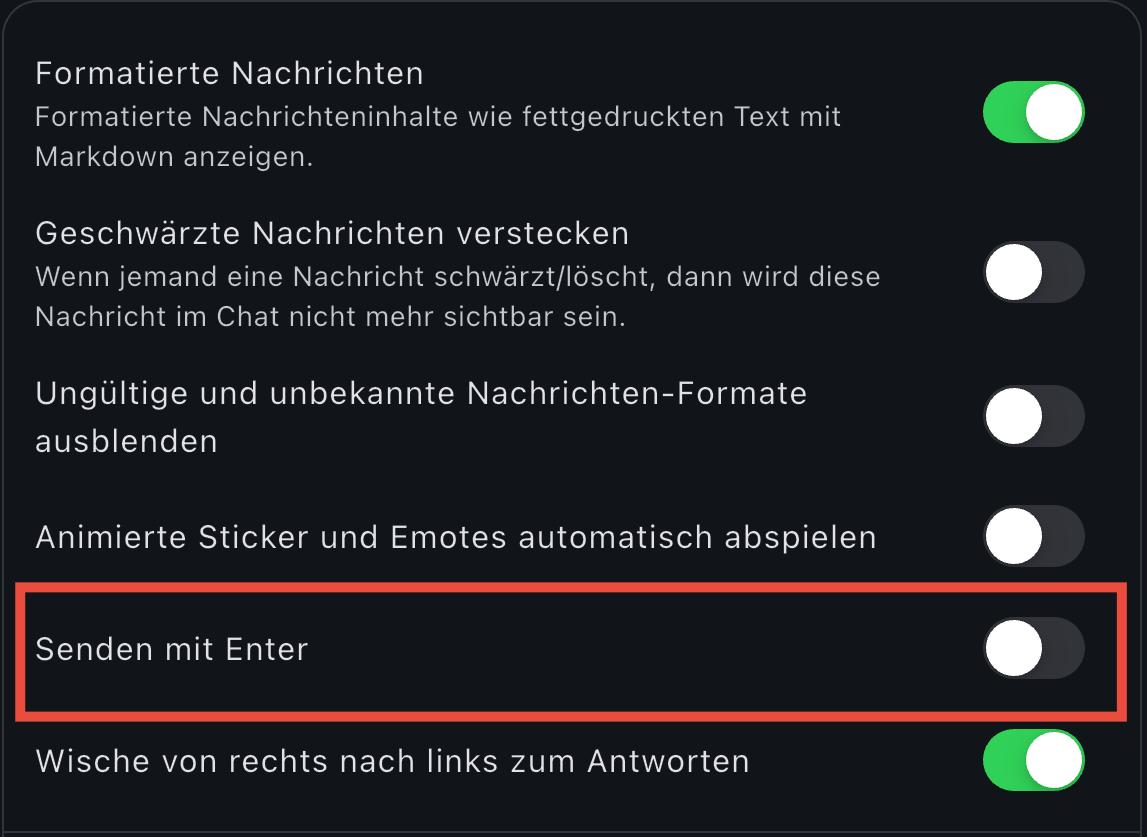
##### Senden mit Enter-Taste deaktivieren: 

<p class="callout info">Diese Einstellung ist sinnvoll, wenn man formatierte Nachrichten (Markdown) verwenden will.</p>

1. Wechsle zu **Profilbild** -&gt; **Einstellungen** -&gt; **Chat**
2. Deaktiviere folgende Einstellungen: [![IMG_3860.jpeg](https://wiki.rdp-bw.de/uploads/images/gallery/2025-12/scaled-1680-/img-3860.jpeg)](https://wiki.rdp-bw.de/uploads/images/gallery/2025-12/img-3860.jpeg)
</details></details>[Anleitungen für Matrix Raumadmins/Moderatoren (Login erforderlich)](https://wiki.rdp-bw.de/link/122)

---

Noch Fragen oder Probleme? Schreib uns gerne eine Mail an <span class="wikiinternallink"><it@rdp-bw.de></span>.